Client information is entered into the database using
Client Matter pages.
- There are four types of Client Matter page, these
are:
- Real Estate,
- Family,
- Guardianship, and
- Probate.
Client Matter pages can be accessed in one of two ways
- From the Data button on the Menu bar, or
- From the Add Matter button in a client page.
To access a Client Matter page from the Menu bar:
- Click Data.

A drop-down menu opens.
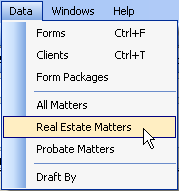
- Click on one of the Client Matter types. You can
select:
- All Matters, or
- Matters relating to a specific legal area.
- Open a client page (see
Adding a Client).
- Click Add Matter.
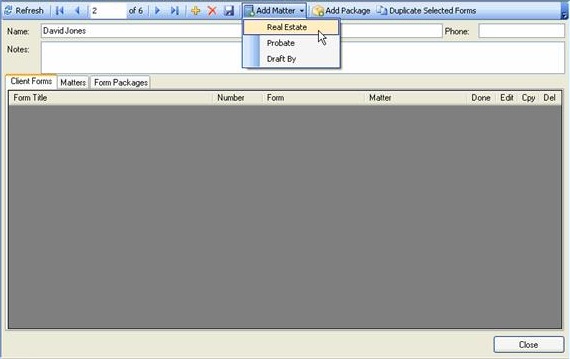
- Click on one of the Client Matter types.
A new Client Matter page is displayed.
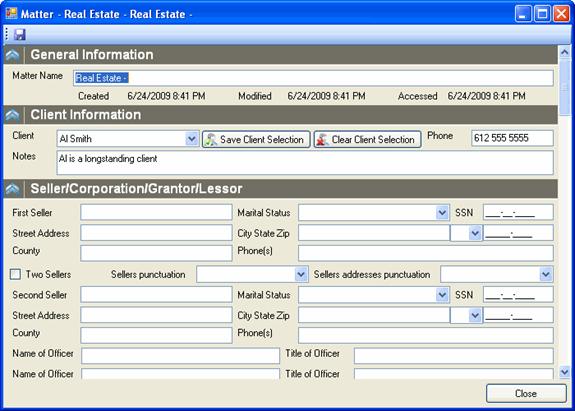
Enter data in the text boxes provided on the form.
- Move the mouse pointer over the space.
- The pointer changes to a text entry bar
[I].
- Click in a text box.
- Type in appropriate text.
To move to another text box,
- Press Tab on the keyboard to move to the next
text box,
OR
Click in any text box with the
mouse pointer.
To save the Client Matter page:
- Click on one of the Save buttons.
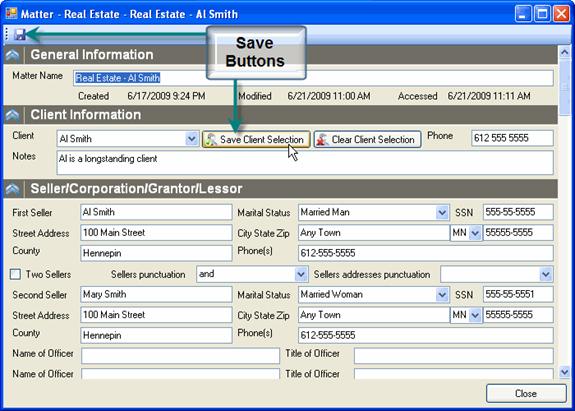
- There is a Save button on the toolbar of the Client
Matter page, and
- There is a Save button to the right of the Client Name
on the Client Matter page.
NOTE: Before a client name can be saved on the form,
that client must be
added to the list of clients.