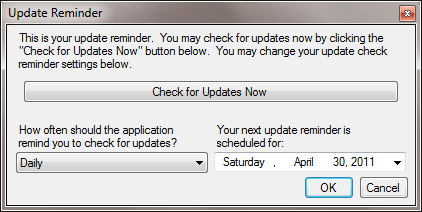
M/Docs II has been designed to automatically help users stay current with new and up-to-date forms as well as changes to the software. The availability of updates will be noted on the software page of our website at http://www.millerdavis.com/software-update.aspx; however, we recommend that subscribers use the program's features to keep them informed of updates as they become available.
The application has a built-in reminder features that will check periodically for updates to the application or the forms database. The initial setting for this reminder feature is to check daily when the program is first started. The user will have the option to check for updates or change the frequency of the reminder using this feature.
To change the frequency of the reminder to check for updates from the reminder window:
To check for updates:
Note: It may be advisable to copy down the instructions since you will have to close the dialog in order to complete the update.
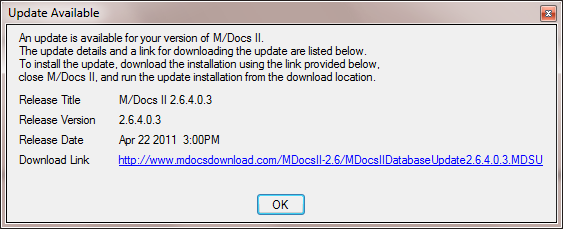
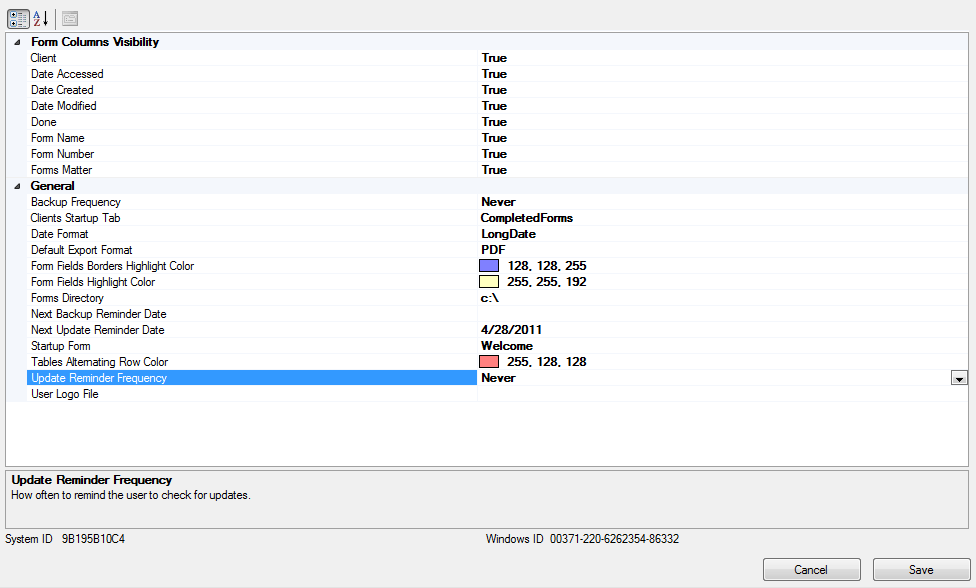
To change the frequency of the reminder to check for updates from the Options window:
To check for updates in between scheduled updates:
The program will either display a message telling you that no updates are available, or will display the Update Available window as shown above.